MCP for AI agents
Connect Fiber to Claude, ChatGPT, Cursor, Claude Code, Codex, VS Code, and Windsurf via Model Context Protocol (MCP) — search companies, enrich contacts, and check credits from your agent.
Using Fiber AI via MCP
We built remote Model Context Protocol (MCP) servers so your agent can search companies, enrich contacts, and check credits from the editor or chat you already use — Claude, ChatGPT, Cursor, Claude Code, Codex, VS Code, Windsurf, and other MCP hosts. Register a Fiber server once, then ask in plain English. Same idea as adding a custom connector or plugin in those apps; Fiber is the B2B data side.
Easiest path
- Cursor, Claude Code, or Codex CLI: paste a prompt and let the agent install Fiber — see Ask the agent.
- Claude or ChatGPT in the browser: use V3 + OAuth (no key). Short click-path on fiber.ai/integrations#mcp-connect, or the screenshots under Setup by client.
Chat UIs prefer V3 because many forms have no header field for an API key. IDEs and CLIs usually start with V2 + an API key. Core keeps the tool list tiny. A smaller lite server is at the bottom — you do not need it to get started.
Get a key at fiber.ai/app/api when you need one.
How to pass it (body, query, headers, sandbox): API keys.
Chargeable MCP calls use the same credits as the matching API operations —
trust chargeInfo and see Billing & credits.
Which server to use
You can register more than one. Names stay distinct (fiber-ai-v2,
fiber-ai-v3, fiber-ai-core).
| Server | URL | Auth | Use it when |
|---|---|---|---|
| V2 | https://mcp.fiber.ai/mcp/v2 | API key | You have a key and want the common operations as direct tools |
| V3 | https://mcp.fiber.ai/mcp/v3 | OAuth (SSO) | You want every public operation and a browser login instead of a key |
| Core | https://mcp.fiber.ai/mcp | API key | You want five meta-tools that discover and call any operation |
Have a key from the website? Use V2 (or Core) and pass the key as
x-api-key or Authorization: Bearer. OAuth is V3 only — do not point
an OAuth / Sign-in flow at V2 or Core.
Authentication
All servers use HTTP (Streamable HTTP). For stdio-only clients, wrap with
npx -y mcp-remote https://mcp.fiber.ai/mcp/v2 --header x-api-key:$FIBER_API_KEY.
API key — V2, Core, and Lite
Create a key at fiber.ai/app/api (starts with
sk_live_), then export it:
export FIBER_API_KEY=sk_live_...Supply the key in any of these ways. The server uses the first non-empty
value: body/query apiKey → x-api-key header → Authorization: Bearer.
Header in the MCP client (recommended for IDEs). The agent never sees the raw key:
{
  "mcpServers": {
    "fiber-ai-v2": {
      "type": "http",
      "url": "https://mcp.fiber.ai/mcp/v2",
      "headers": { "x-api-key": "sk_live_..." }
    }
  }
}
Prefer an env var in committed config:
"headers": { "x-api-key": "${env:FIBER_API_KEY}" }Bearer header if your client only supports Authorization:
"headers": { "Authorization": "Bearer sk_live_..." }Chat (simplest, leakier). Paste the key once and the agent sends apiKey
in the request body. Fine for a personal session; skip this on shared chats.
A key in chat history can leak. For team configs and Codex/Claude Code,
put x-api-key on the server config instead.
OAuth — V3 only
V3 ignores API keys. On first connect, the client opens
https://app.fiber.ai for SSO; the session token is reused. No headers, no
env vars.
If a host's connector form only offers Sign in / OAuth, use
https://mcp.fiber.ai/mcp/v3. If you paste V2 there, the OAuth attempt fails.
Ask the agent
For Cursor, Claude Code, and Codex CLI, the fastest path is to paste one of these prompts into the agent and let it configure MCP. Same pattern Honeycomb and others use: the agent installs the server, then asks you to authenticate.
V2 (API key) — recommended when you already use Fiber keys:
Read https://docs.fiber.ai/build/mcp and install Fiber MCP V2 for this agent.
Authenticate with my Fiber API key in the MCP server config as a header
(x-api-key or Authorization: Bearer) — not as a one-off chat paste.
Ask me to paste the key from fiber.ai/app/api. Do not invent a key or leave
a placeholder in the config.
For Core, say Fiber MCP Core and URL https://mcp.fiber.ai/mcp instead
of V2.
V3 (OAuth) — no key; the client opens Fiber sign-in:
Read https://docs.fiber.ai/build/mcp and install Fiber MCP V3 for this agent.
Use the OAuth server URL. I will sign in when the client asks.
Manual deeplinks and CLI commands for each host are below if you prefer to wire it yourself.
Setup by client
Cursor
Prefer Ask the agent. Or install with a deeplink — paste into the browser address bar:
V2 (API key):
cursor://anysphere.cursor-deeplink/mcp/install?name=Fiber-AI-v2&config=eyJ1cmwiOiJodHRwczovL21jcC5maWJlci5haS9tY3AvdjIifQ==V3 (OAuth):
cursor://anysphere.cursor-deeplink/mcp/install?name=Fiber-AI-v3&config=eyJ1cmwiOiJodHRwczovL21jcC5maWJlci5haS9tY3AvdjMifQ==Core (API key, 5 meta-tools):
cursor://anysphere.cursor-deeplink/mcp/install?name=Fiber-AI&config=eyJ1cmwiOiJodHRwczovL21jcC5maWJlci5haS9tY3AifQ==Or manually: Cursor Settings → Customize → MCP → New MCP Server. Name
Fiber-AI-v2, type HTTP, URL https://mcp.fiber.ai/mcp/v2, header
x-api-key.
Claude (web)
Use V3 + OAuth. Claude's connector UI speaks OAuth cleanly; you do not need a pasted key.
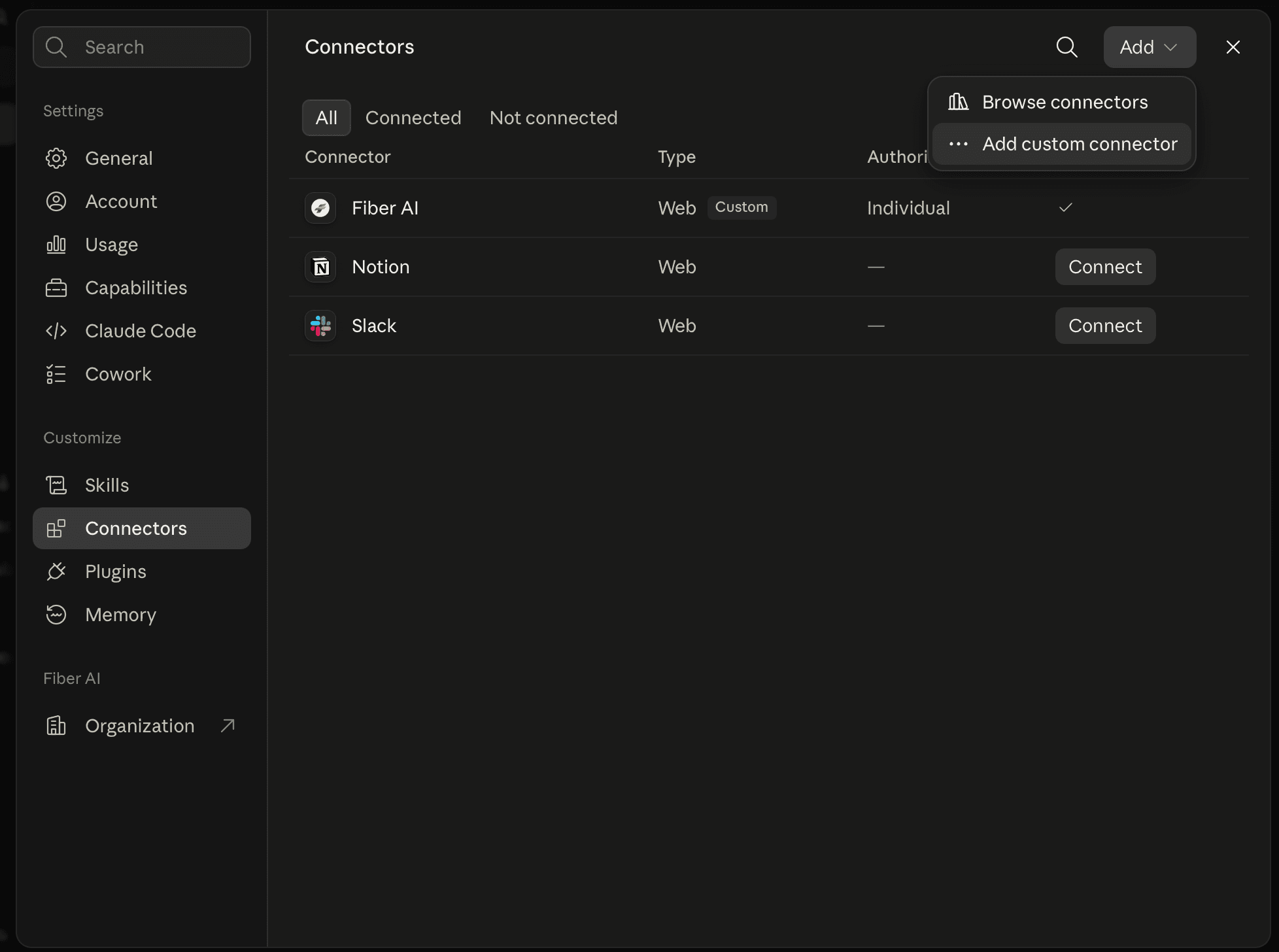
- Open Settings (or Customize in the sidebar) → Connectors.
- Add → Add custom connector.
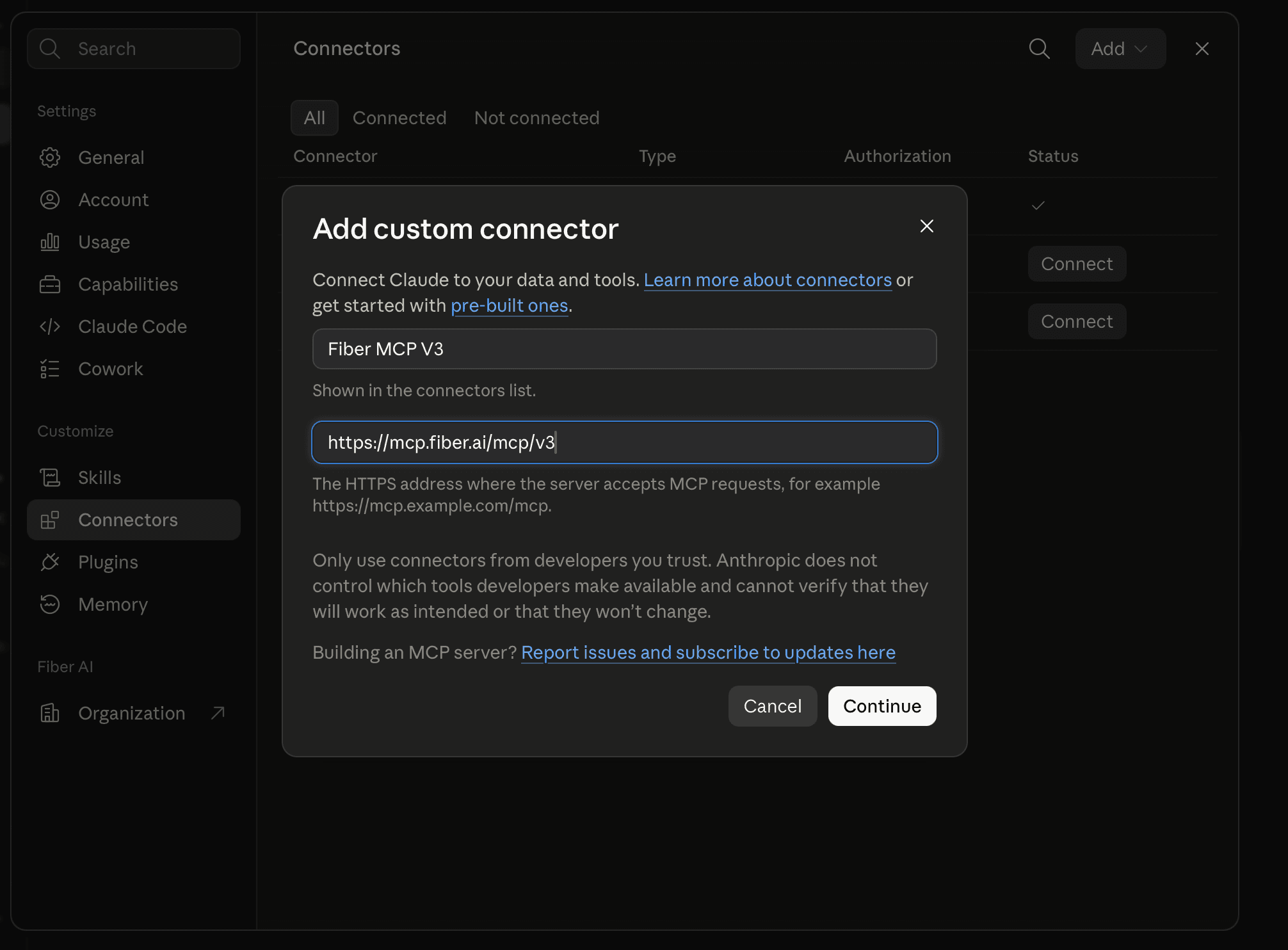
- Name it
Fiber MCP V3, pastehttps://mcp.fiber.ai/mcp/v3, continue.
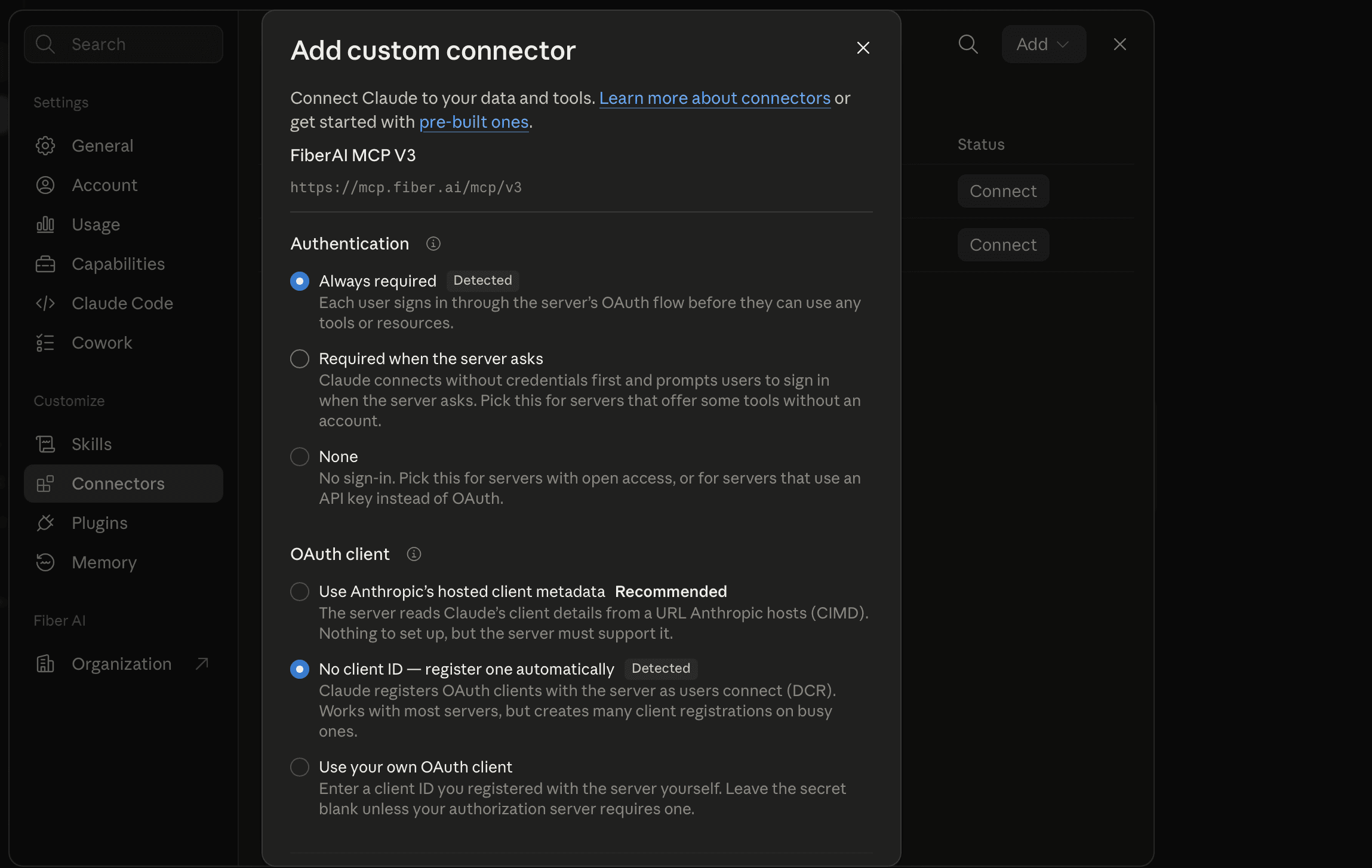
- Leave Authentication on Always required (Claude usually detects this). Click Connect / Add and finish Fiber sign-in.
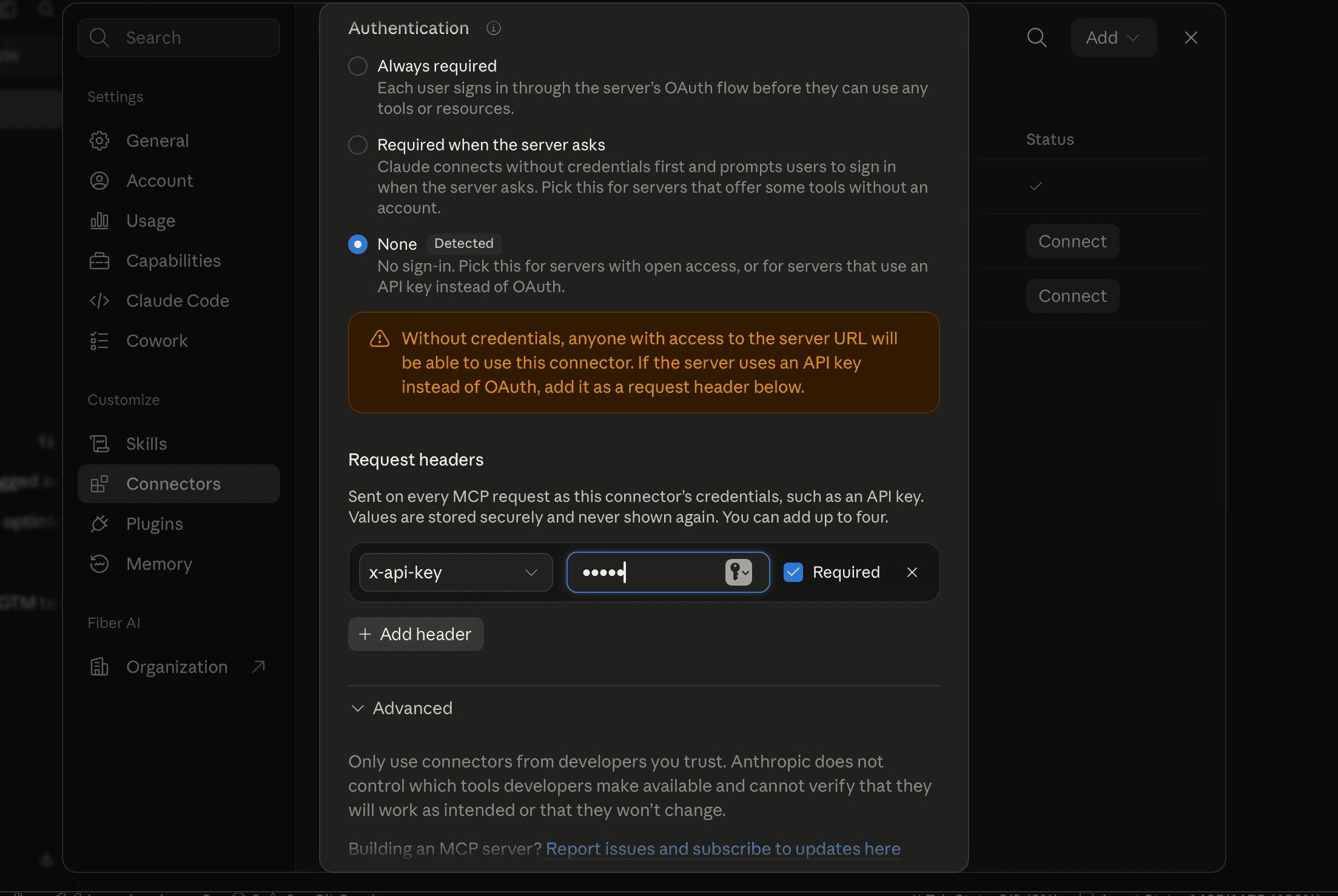
V2 or Core instead? Point the URL at /mcp/v2 or /mcp. When Claude
detects auth None, add a request header x-api-key with your key from
fiber.ai/app/api:
Claude Code
Prefer Ask the agent. Or run these yourself (export
FIBER_API_KEY first for V2 / Core):
claude mcp add --transport http fiber-ai-v2 https://mcp.fiber.ai/mcp/v2 \
  --header "x-api-key: $FIBER_API_KEY"

claude mcp add --transport http fiber-ai-v3 https://mcp.fiber.ai/mcp/v3

claude mcp add --transport http fiber-ai-core https://mcp.fiber.ai/mcp \
  --header "x-api-key: $FIBER_API_KEY"
Run /mcp in a session to confirm.
ChatGPT (web)
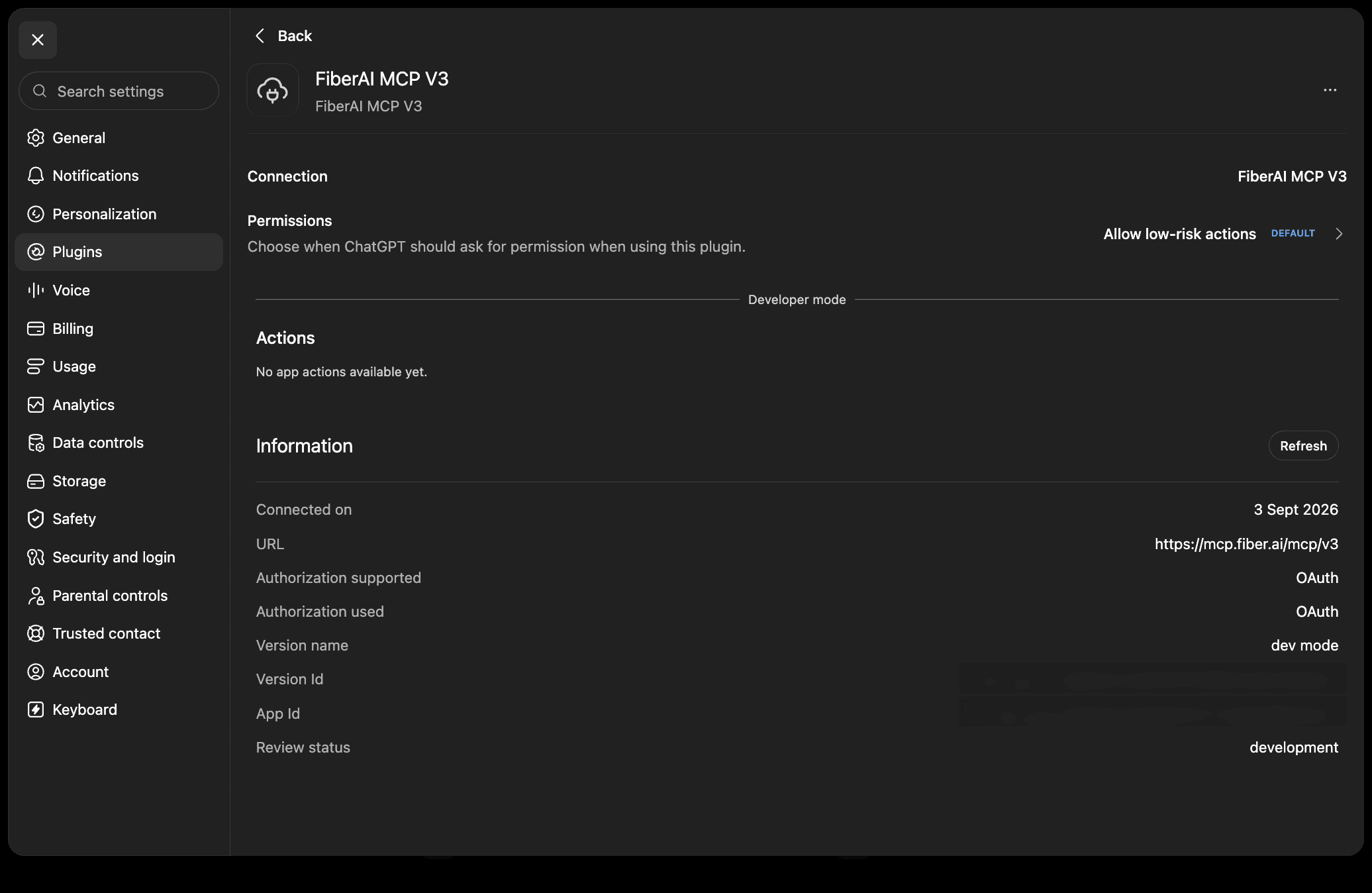
ChatGPT web labels MCP servers as Plugins. Use V3 + OAuth — the web
form does not reliably expose a custom header field for x-api-key.
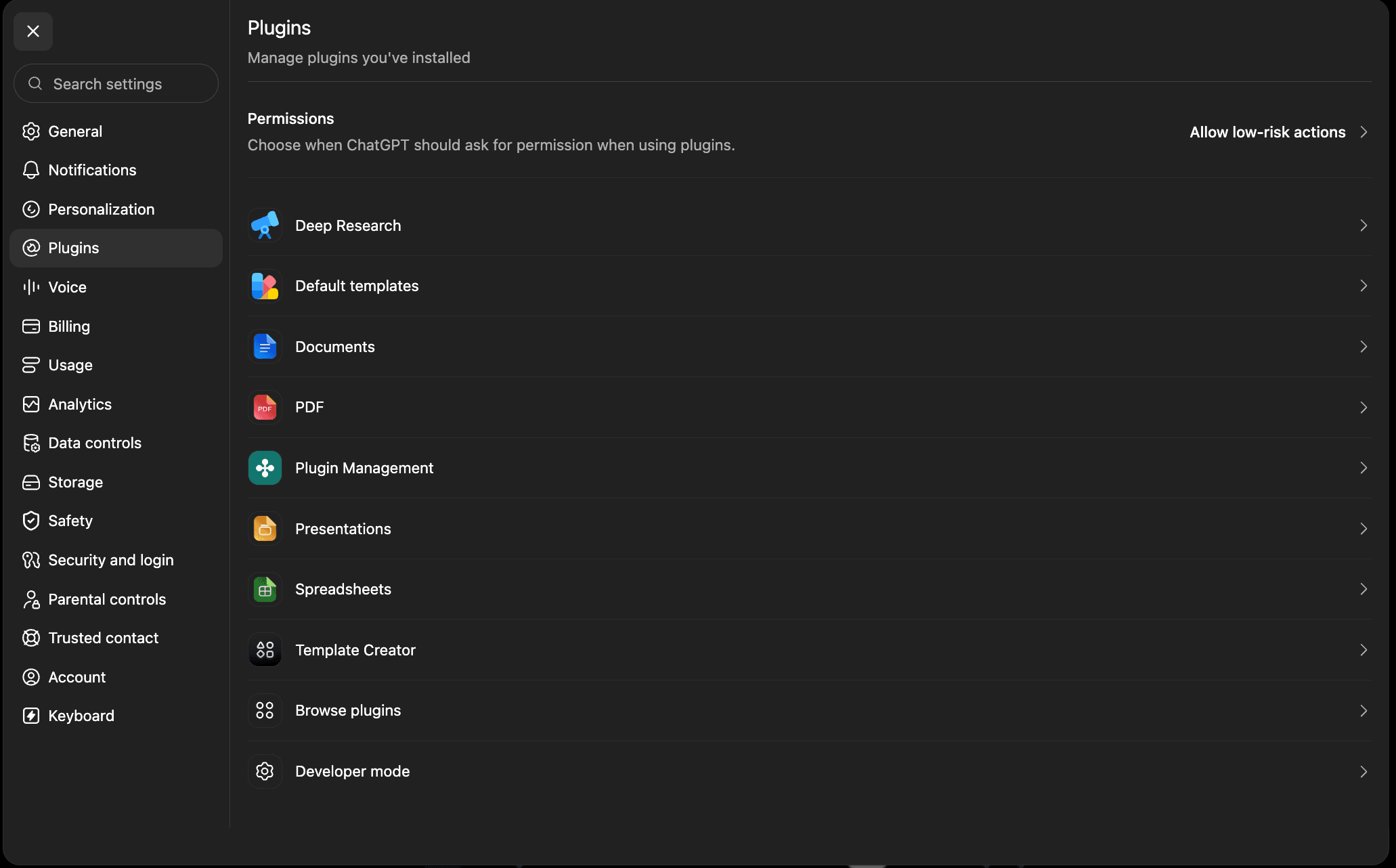
- Settings → Plugins. Scroll to Developer mode and turn it on.
- From that same Plugins list, open Browse plugins.
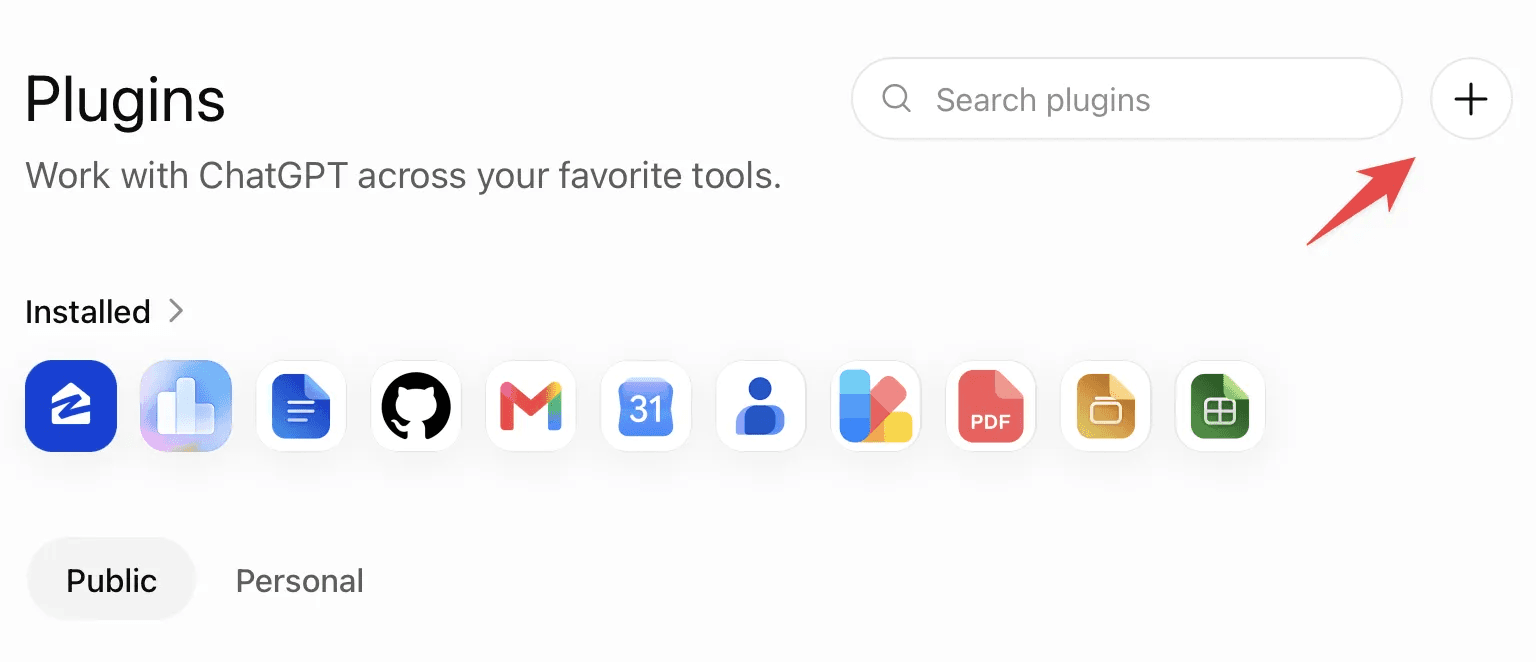
- On the Plugins page, click + (top right, next to Search plugins).
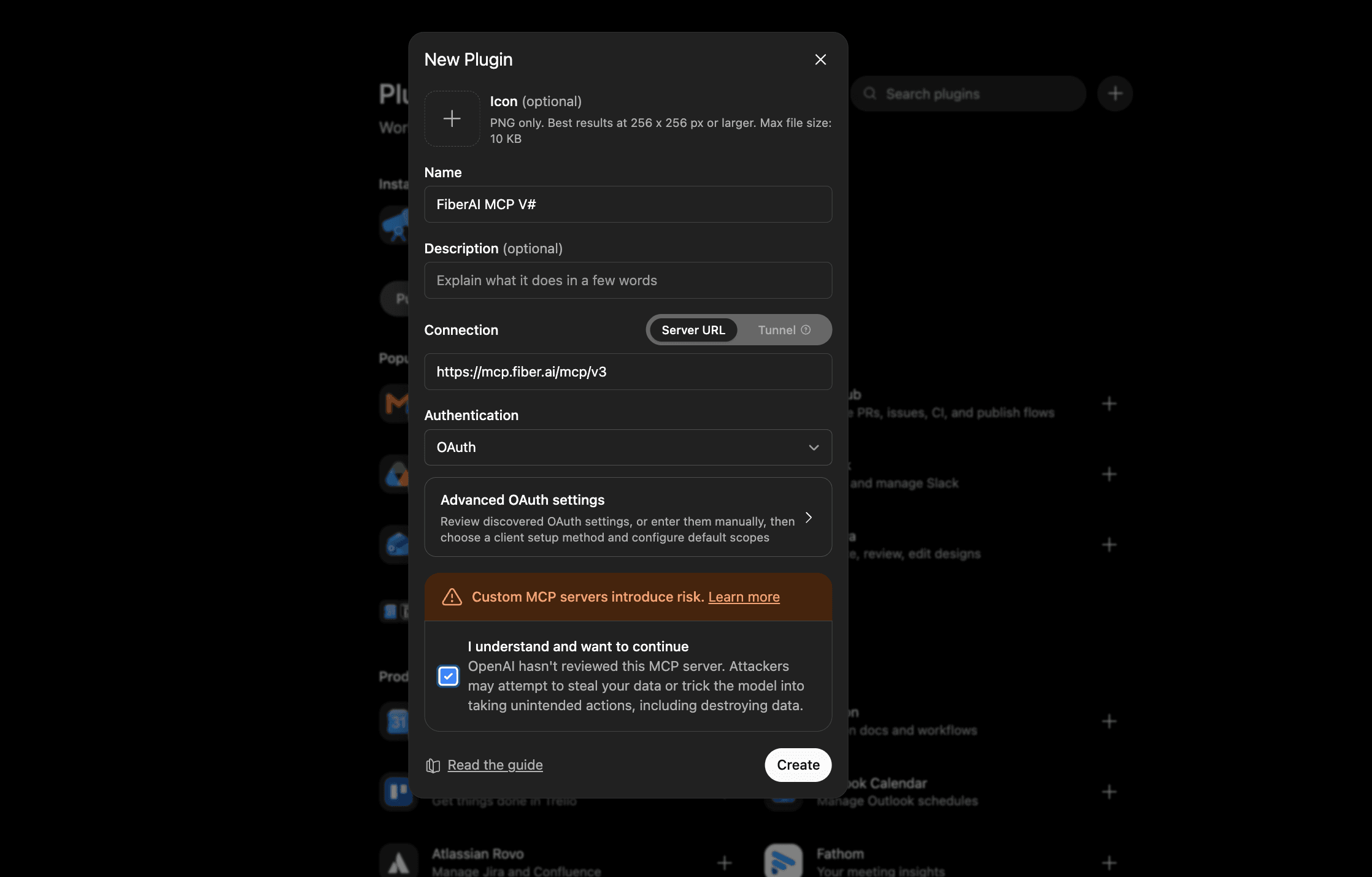
- Create the plugin: name
FiberAI MCP V3, Connection = Server URL, URLhttps://mcp.fiber.ai/mcp/v3, Authentication = OAuth. Accept the custom MCP warning and Create.
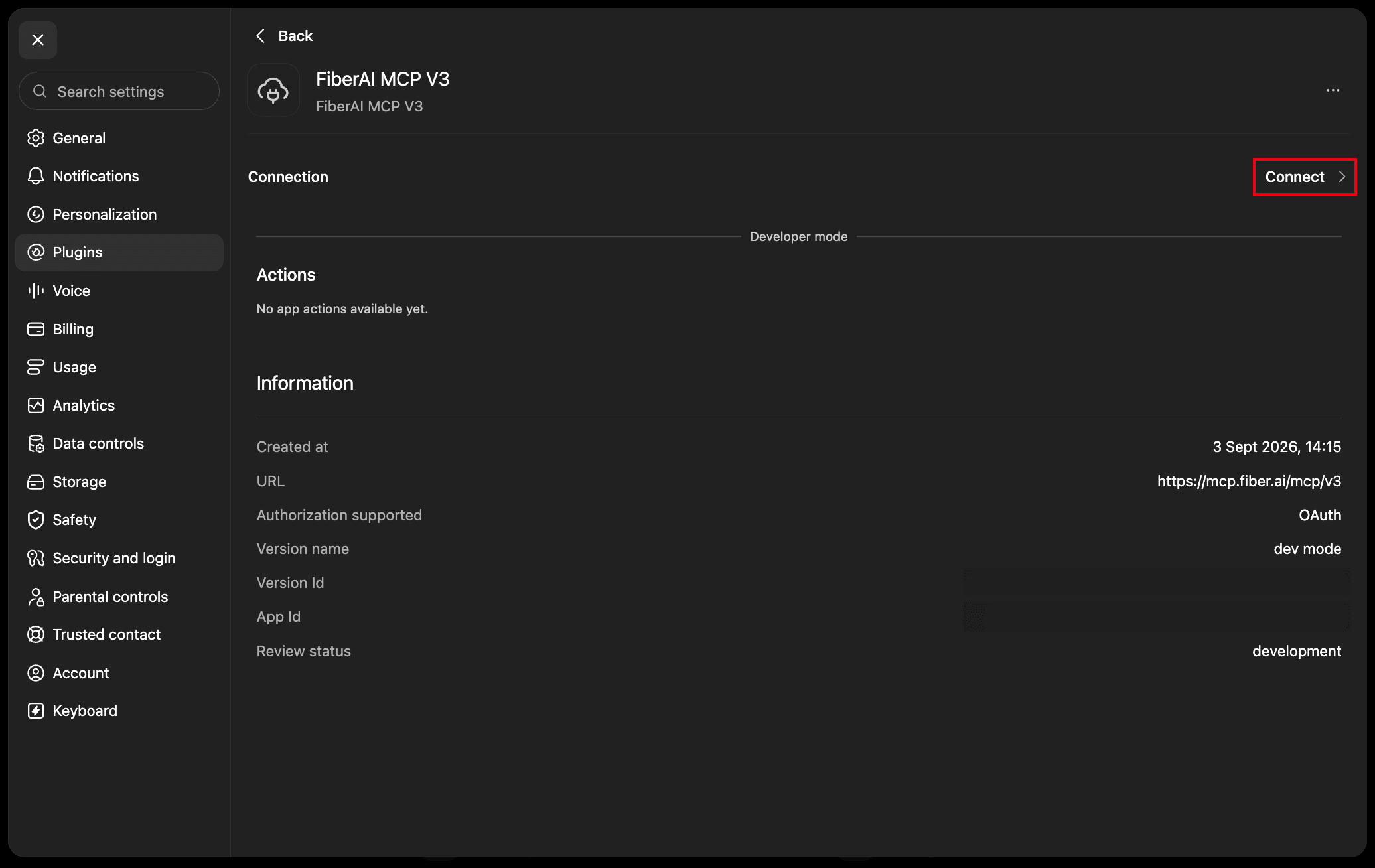
- Open the plugin detail → Connect, finish Fiber OAuth.
ChatGPT desktop app
OpenAI's desktop app is ChatGPT (older builds were labeled Codex). This
is not the same as Codex CLI in the terminal.
Developer mode is not required here. Prefer V2 + x-api-key when
you want a key in headers.
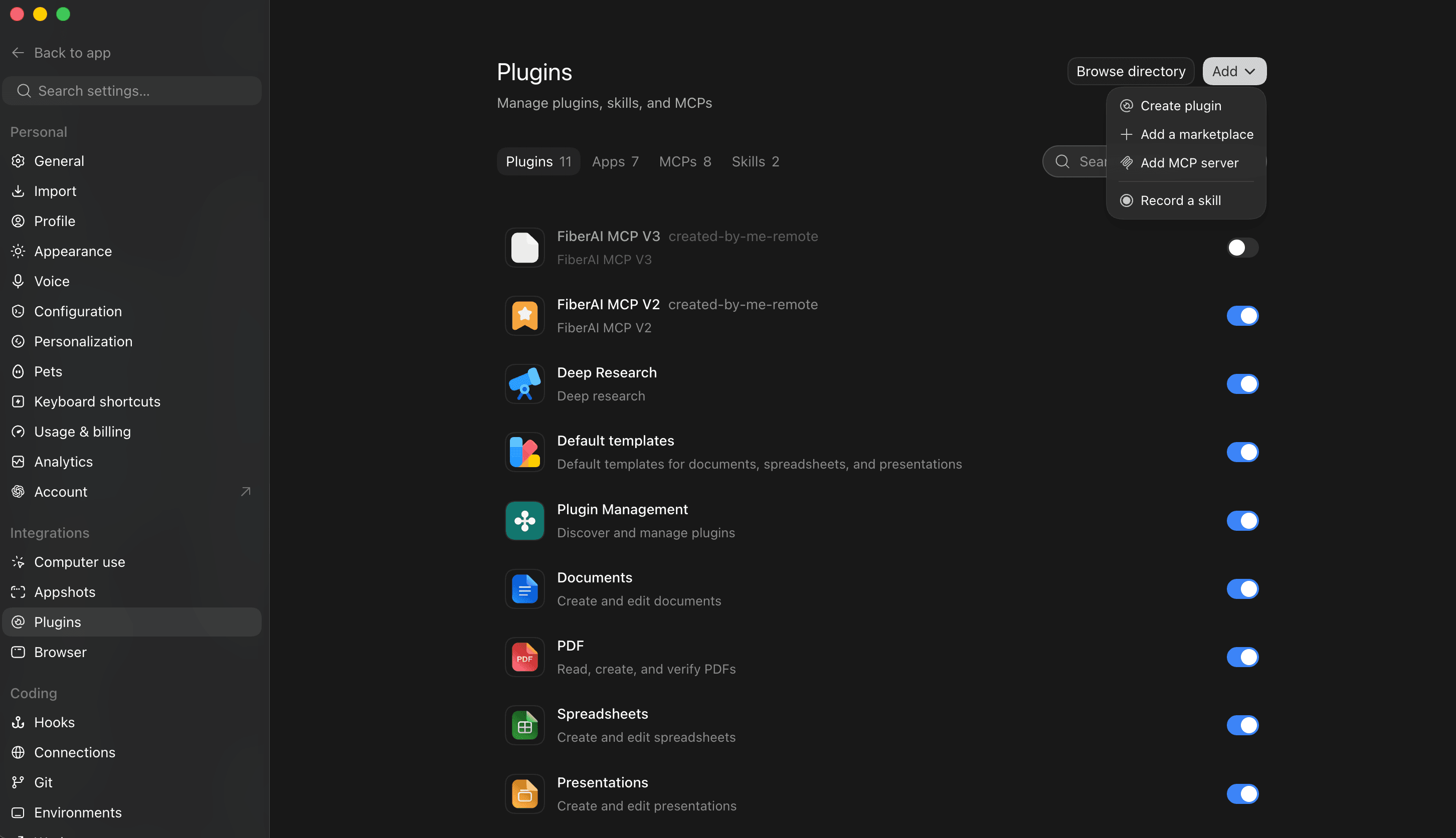
- Open Plugins from Settings or the left sidebar → Add → Add MCP server.
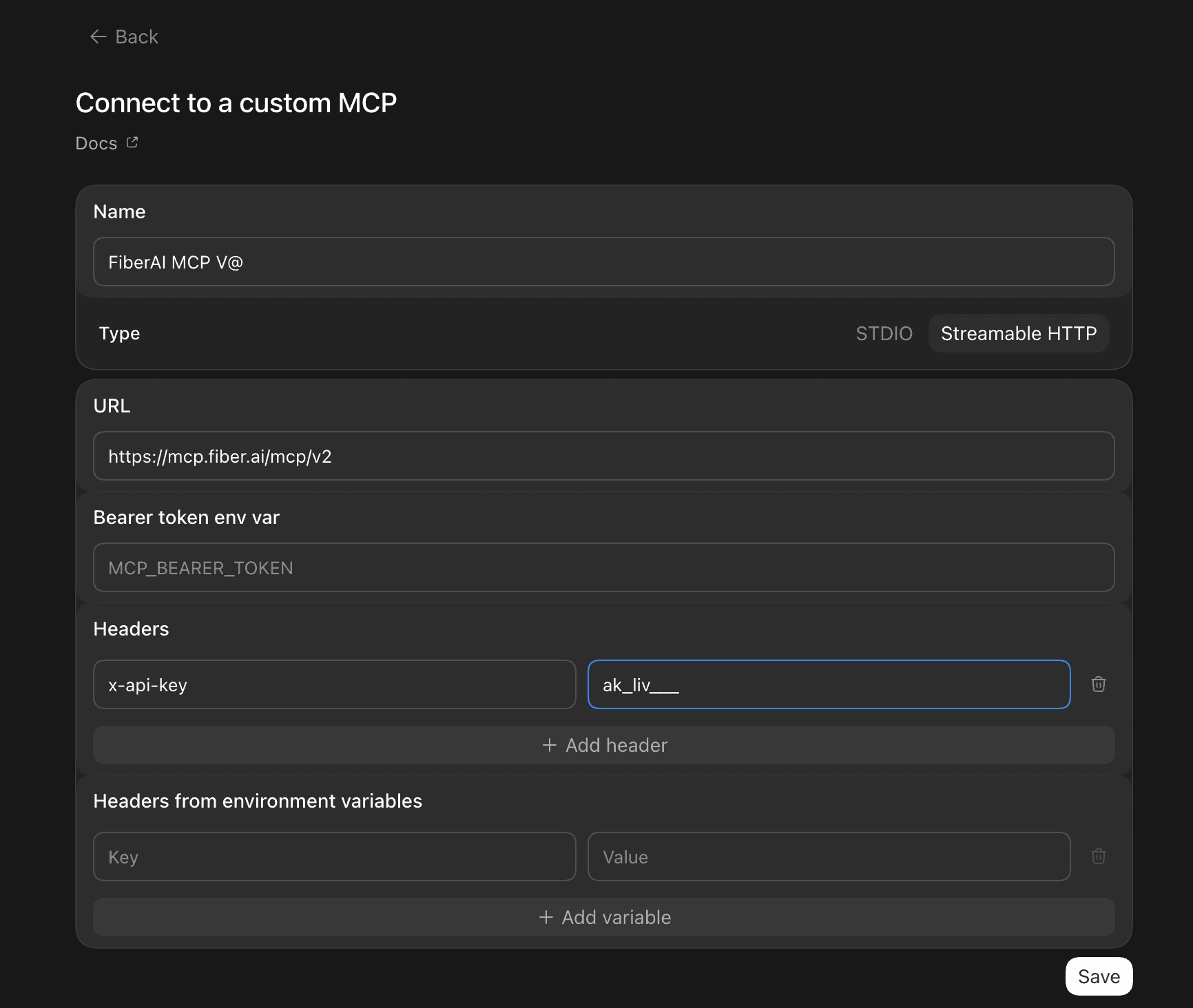
- Choose Streamable HTTP. Name it, paste
https://mcp.fiber.ai/mcp/v2, add headerx-api-keywith your key, Save.
For V3 in the app, use https://mcp.fiber.ai/mcp/v3 and sign in when the
client prompts — no header.
Codex CLI
Codex CLI is the terminal coding agent (codex). Prefer
Ask the agent. The CLI has no --header flag — use a
bearer env var (Fiber accepts Authorization: Bearer) or edit
~/.codex/config.toml.
V2 — API key via env (verified with Codex CLI):
export FIBER_API_KEY=sk_live_...
codex mcp add fiber-ai-v2 --url https://mcp.fiber.ai/mcp/v2 \
  --bearer-token-env-var FIBER_API_KEY
That writes:
[mcp_servers.fiber-ai-v2]
url = "https://mcp.fiber.ai/mcp/v2"
bearer_token_env_var = "FIBER_API_KEY"
Or set an explicit x-api-key in config (value from an env var name):
[mcp_servers.fiber-ai-v2]
url = "https://mcp.fiber.ai/mcp/v2"

[mcp_servers.fiber-ai-v2.env_http_headers]
x-api-key = "FIBER_API_KEY"
V3 — OAuth (opens a browser login; no key):
codex mcp add fiber-ai-v3 --url https://mcp.fiber.ai/mcp/v3For V2, always pass --bearer-token-env-var (or http_headers /
env_http_headers in config). Without credentials, Codex may try OAuth,
which V2 does not support — use the V3 URL for OAuth instead.
Visual Studio Code
Ctrl/Cmd + P → MCP: Add Server → Command (stdio):
npx mcp-remote https://mcp.fiber.ai/mcp/v2 --header x-api-key:$FIBER_API_KEYOr .vscode/mcp.json (HTTP):
{
  "mcpServers": {
    "fiber-ai": {
      "type": "http",
      "url": "https://mcp.fiber.ai/mcp/v2",
      "headers": { "x-api-key": "${env:FIBER_API_KEY}" }
    }
  }
}
Windsurf
Settings → Cascade → MCP servers → Add custom server:
{
  "mcpServers": {
    "fiber-ai": {
      "command": "npx",
      "args": [
        "-y",
        "mcp-remote",
        "https://mcp.fiber.ai/mcp/v2",
        "--header",
        "x-api-key:${FIBER_API_KEY}"
      ]
    }
  }
}
Zed
{
  "context_servers": {
    "fiber-ai": {
      "source": "custom",
      "command": "npx",
      "args": [
        "-y",
        "mcp-remote",
        "https://mcp.fiber.ai/mcp/v2",
        "--header",
        "x-api-key:${FIBER_API_KEY}"
      ],
      "env": { "FIBER_API_KEY": "sk_live_..." }
    }
  }
}
Others
- URL:
https://mcp.fiber.ai/mcp/v2(key) orhttps://mcp.fiber.ai/mcp/v3(OAuth) - Transport: HTTP (Streamable HTTP)
- Key header:
x-api-key: <your key>orAuthorization: Bearer <your key> - stdio:
npx -y mcp-remote https://mcp.fiber.ai/mcp/v2 --header x-api-key:$FIBER_API_KEY
Using it effectively
- Chat UIs: V3 + OAuth. IDEs / CLIs: V2 +
x-api-keyif you have a key; V3 when you want SSO or the full operation list. - Put the key in headers for Codex, Claude Code, and anything that writes config to disk — not in the chat transcript.
- Check credits first on large jobs —
api_getOrgCreditson V2, orgetOrgCreditsvia Core / lite. - One server is enough for most people. Add Core only if you want the agent to search the full API catalog at runtime.
Tools
V2 (/mcp/v2)
Direct tools for the common flows, including:
| Tool | What you get |
|---|---|
api_companySearch | Companies by industry, location, size, funding |
api_peopleSearch | People by title, seniority, department |
api_individualRevealSync | Work email and phone for a LinkedIn profile |
api_companyLiveFetch | Live company snapshot |
api_personLiveFetch | Live person snapshot |
api_getOrgCredits | Credit balance |
About ten curated tools in total.
V3 (/mcp/v3)
Same one-tool-per-operation shape, covering every public operation. Descriptions start compact; the agent expands them as needed. OAuth only.
Core (/mcp)
Five meta-tools, API key:
| Tool | What you get |
|---|---|
search_endpoints | Ranked operations for an intent |
list_tag_packs | Curated tag packs (recruiting, sales, signals, …) |
list_all_endpoints | Full operation list |
get_endpoint_details_full | Schema for one operation |
call_operation | Run any operation by operationId |
Example prompts
Once Claude, ChatGPT, Cursor, or Codex has Fiber MCP connected:
- "Search for SaaS companies in New York with 50–200 employees"
- "Find the CEO of Stripe and get their work email"
- "How many credits do I have left?"
- "Enrich this LinkedIn profile: linkedin.com/in/..."
FAQ
I copied a key from the website. Which snippet do I use? V2 or Core — not
V3. Claude Code / Cursor: x-api-key header. Codex CLI:
--bearer-token-env-var FIBER_API_KEY (Bearer) or env_http_headers for
x-api-key. Or paste Ask the agent and let it wire it.
Codex CLI tried OAuth on V2. You added V2 without credentials. Pass
--bearer-token-env-var FIBER_API_KEY, or switch the URL to /mcp/v3 for
OAuth.
ChatGPT web has no API-key header field. Use V3 OAuth. The ChatGPT
desktop app can take x-api-key on Streamable HTTP — use V2 there if you
prefer a key. That app is separate from Codex CLI.
api.fiber.ai/docs search does not find Codex or Claude. That page is the
OpenAPI reference. MCP setup is this page, not the API spec.
Can I run more than one server? Yes. Keep the names distinct.
Plugins? One-command install of MCP plus skills: Developing with AI agents.
Lite
Lite is a fourth remote server with a smaller tool list. Same API-key auth as V2. Skip it unless you specifically want that subset.
| Field | Value |
|---|---|
| URL | https://mcp.fiber.ai/mcp/lite |
| Auth | API key (x-api-key), same as V2 |
| Name | fiber-ai-lite |
claude mcp add --transport http fiber-ai-lite https://mcp.fiber.ai/mcp/lite \
  --header "x-api-key: $FIBER_API_KEY"
What you get:
- Company, people, and job-posting search plus matching count operations
- Quick resolve for a company or person
- Typeaheads for companies and skills
instantContactReveal— contact lookup for a known persongetOrgCredits- Reference lists (industries, NAICS, regions, metros, tags, languages, time zones, accelerators, technologies, skills)
It does not replace V2/V3/Core. For live LinkedIn snapshots, deep contact tiers, audiences, and the rest of the public API, use V2, V3, or Core.
Credits
MCP does not have a separate price list. Each tool call charges like the
underlying API operation. chargeInfo on the response is authoritative.
See Billing & credits.